
AI meeting notes for Microsoft Teams: what actually works (including translation)
Microsoft Teams ships with AI meeting notes. Whether they work for your situation depends on answers to three questions: which M365 plan you're on, what languages your meetings run in, and whether you need the notes inside Teams or just somewhere useful.
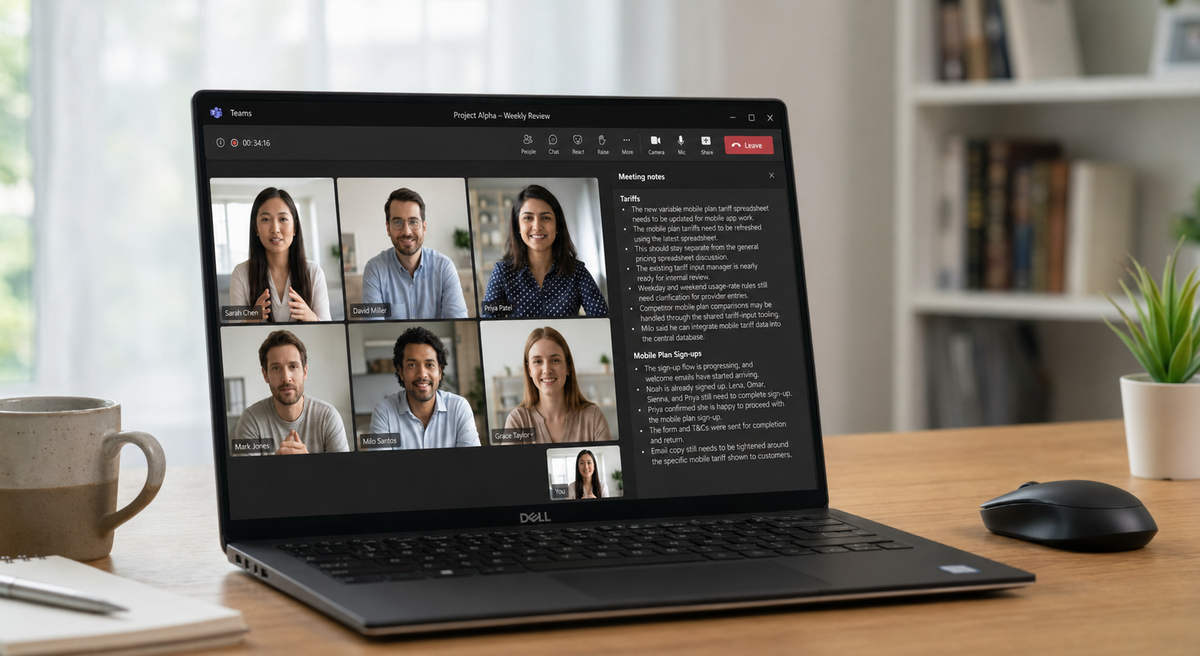
There's a specific frustration that hits the first time you turn on AI meeting notes in Microsoft Teams. You enable Intelligent Recap. The feature looks exactly right — AI-generated notes, action items, speaker attribution. You run a few meetings, look at the output, and find a pattern: the recap captures the structural beats — agenda items, named decisions, who said what — but loses the side comments and qualifiers that often turn out to matter. Action items only land when they're spelled out ("I'll have this by Friday"); they disappear when the handoff is implicit. And if a participant speaks anything other than the language the organiser selected at the start, their part of the call either never makes it into the transcript or comes back as garbled text — and the AI summary builds on whatever the transcript captured.
This isn't a complaint that the technology is bad. It's that what Copilot actually covers — and what it doesn't — is narrower than the marketing implies. Whether the built-in option is enough depends on which side of that line your meetings sit on.
Microsoft Teams meeting notes: what's built in
Microsoft Teams includes two overlapping AI features for meeting notes. Which ones you have depends on your licence.
Intelligent Recap is available on Teams Premium and higher. It generates automatic meeting notes, action items, and a list of speakers after the meeting ends. It requires recording to be enabled (and therefore notifies all participants that recording is happening). The quality on a structured, single-language meeting is decent — recognisable topics, usable action items. The quality on an unstructured conversation with multiple speakers degrades noticeably.
Copilot in Teams comes with Microsoft 365 Copilot ($30 per user per month on top of your existing M365 licence). It goes further: you can ask questions during a live meeting ("what did Sarah say about the budget?"), generate summaries mid-call, and query the meeting transcript after it ends. This is the version that gets demoed at Microsoft events. It also requires a recording and a Teams Premium licence underneath the Copilot licence — so the actual cost to unlock it is M365 Copilot + Teams Premium.
For most teams on Business Basic or Business Standard, neither of these features is included. They have access to manual transcript export — the raw text output — and not much else unless they add licences.
What the licence cost actually means
The relevant number for AI meeting notes in Teams is $30 per user per month for M365 Copilot, plus the underlying M365 licence (which starts at $6 for Business Basic and runs to $22 for Business Premium). For a ten-person team, turning on Copilot for everyone adds $300 per month to the bill, on top of what you're already paying.
Some teams make this work by rolling out Copilot to a subset of users — the people who organise meetings, rather than everyone who attends them. The organiser's Copilot licence enables the AI features for the meeting, regardless of whether other attendees have it. This is cheaper and covers the core use case: someone on the team is responsible for getting the notes, and they have the licence to do it.
Where this breaks down is on translation. M365 Copilot does live captions — in English, plus additional languages via a separate add-on (Communication Credits). But the meeting notes Copilot generates are in the language of the meeting, with no translation of the notes themselves built in.
The translation gap
For Teams users whose meetings run in multiple languages, the built-in AI stops at the transcript — it never translates before summarising.
Teams does have a live captions feature, and it includes basic translation in some configurations. But the coverage is uneven — it depends on which meeting type (channel meeting, 1:1, Live Event), which M365 plan, and which language direction. More importantly, the live captions are not saved. They run during the call and disappear. The meeting notes that Intelligent Recap or Copilot generate afterwards are based on the transcript, which is in the source language. If your meetings switch between English and Spanish, or if a participant presents in French, the notes from that portion of the meeting reflect whatever the ASR transcribed, not a translation of it.
For a bilingual team where some members work primarily in English and others primarily in another language, the English speakers get usable AI meeting notes. The others get a transcript they can't act on, or need to manually translate.
This is not a gap that a licence upgrade closes. It's built into how Copilot meeting notes work — they run on the transcript, and the transcript doesn't get translated before the summary is generated.
Microsoft is rolling out auto-detect for spoken language across 10 languages in 2026 — that closes one half of the gap (Teams will pick up multiple languages in a meeting without manual setup) but not the other (the AI summary is still built from a single transcript, not from a translated one).
Third-party note-takers: what they get right and where they fall short
The gap Microsoft leaves is why Otter.ai, Read.ai, Fireflies, and similar tools have built significant user bases inside Teams. They integrate via the meeting bot pattern — a participant joins your call, records it, and returns structured notes after.
The notes quality varies but the model is consistent: join → transcribe → summarise. For English-only meetings this works well. The tools compete on summary quality, action item detection, and integration with your CRM or project management setup.
Translation is where most of them stop. Otter.ai supports transcription in a set of languages but doesn't translate across them — if your meeting switches from English to Japanese, you get two parallel untranslated transcripts. Read.ai has multilingual transcription but not real-time translation. Fireflies can transcribe in multiple languages but again: the notes come back in whatever language was spoken.
There's also the bot participant issue. Every tool in this category joins your Teams call as a visible bot. For internal working sessions this rarely matters. For calls with clients, regulated industries, or NDAs that restrict recording, it can be a problem — either a policy problem (the client's IT rules prohibit it) or a relationship problem (a named bot appears in the attendee list and someone asks what it is).
What AI meeting notes should mean for a multilingual team
If your team runs meetings in more than one language — even occasionally — the standard definition of "AI meeting notes" breaks down.
The current market assumption is: good transcription + good summarisation = good meeting notes. That assumption holds when the meeting is in one language that everyone speaks. When it doesn't hold, the notes you get are notes for some of the people in the meeting — the ones whose language the tool handled best.
What a multilingual team actually needs is closer to: transcription in each language spoken → translation into a shared language → summarisation that works across the translated content. That pipeline is harder to build than the single-language version, and most tools haven't built it.
The practical substitute that works now is the one Localingo uses: live translation running alongside the meeting (not a bot, not a recording requirement — just your browser listening to system audio), generating captions in your language in real time, and saving the meeting as a searchable record with the translation included. The notes come from the meeting in a form you can actually read, not just the form it was spoken in.
You can try generating meeting notes from a Teams transcript without an account — paste any transcript and see what structured notes look like.
For a deeper look at how the live translation part works technically, see real-time meeting translation: how it works and why accuracy matters.
How to get meeting notes and translation working in Teams right now
The practical path depends on what you're starting from.
If you have M365 Copilot and your meetings are primarily in one language: the built-in notes are probably good enough for that language. For any translation component, you'll need something alongside it — the live captions feature covers following the meeting, but the notes will still be untranslated.
If you're on a standard M365 plan without Teams Premium: the built-in AI note-taking isn't available to you. The two main options are: add a third-party bot (Otter, Fireflies, Read.ai) and accept the bot-in-the-attendee-list model, or use something that doesn't join the call at all and works on your system audio.
If your meetings involve multiple languages: the bot-based tools have the same gap as Copilot on translation. A tool that runs in your browser and handles live translation — with the translated record saved after — closes the gap that the standard options leave open. This is what the Teams translation page covers in more detail: Microsoft Teams live translation and meeting notes.

The built-in options are solid for what they cover — English-first, single-language, standard business meetings — and inadequate for anything else. The licence cost to get Copilot's full capability is real, and the multilingual gap exists at every price point. Third-party tools extend the note-taking but mostly don't solve translation. For Teams users running multilingual meetings now, the practical answer isn't to wait for Microsoft, but rather to use a translation-first tool before the summary.